TECH ADVICE

Science and Technology

  • Home
  • Sitemap
  • About Us
  • Privacy Policy
  • Contact Us
  • Home
Showing posts with label Android Tricks. Show all posts

Thursday, 26 January 2017

Top 15 Unique Uses of USB OTG Cable You Never Know – 2017

 Psk4u     16:21     Android Tricks, Information Zone     No comments   


Top 15 Unique Uses of USB OTG Cable You Never Know – 2017
USB On-The-Go (popularly known as USB OTG) is undoubtedly one of the coolest features of Android (although few other devices support it too). It’s a standard that allows USB OTG compatible devices (e.g. almost all modern Android devices) to act as “hosts” or controllers for other USB gadgets, such as keyboards/mice, flash drives, and even game controllers. This essentially means that Android devices don’t need a computer to act as host for interfacing with other USB devices, and act like mini-computers themselves.
Thanks to USB OTG, you can expand your Android smartphone’s functionality in numerous ways, and use it to do extremely cool things like accessing data stored on Flash drives, and even charging other phones. But is that all?
Not by a long shot, and that’s why this article rounds up some unique and cool USB OTG uses. But before we even get to the listing, here are some important things you need to keep in mind.

Top 15 Uses of USB OTG Cable You Never Know

#1 Pen Drive or Hard Drive or Flash Drive
Pen drive is one of the best and most used features of USB OTG Cable. Yes, you can connect your pen drives with your Android device and access all the data, and you can even copy, paste, modify, delete, straight from your phone. If your stock file manager does not work, go with ES File Explorer File Manager, these days pen drives come with OTG port so you don’t need any OTG cable now connect straight to the micro USB port and ready to go. A hard drive may not support all device.
USB OTG Cable
#2 USB or Bluetooth Keyboard 
You can even connect a keyboard to your Android phone, all you need to do is connect an OTG cable and plug in USB or Bluetooth keyboard and write down all your long notes and data very quickly with an external keyboard. It is as easy as using the keyboard with PC or laptop makes your work faster while using an android phone.
USB OTG Cable
#3 USB or Bluetooth Mouse
You can use external mice with your android phone all you need to do is connect an OTG cable and connect any USB or Bluetooth mouse, And you’re ready to go, you can see a cursor on your android screen and use mouse to do whatever you can do with your touch so this will be life saver for someone who got broken touch.
USB OTG Cable
#4 USB Fan
You may be thinking how is possible but YES! You can connect USB fan with OTG cable, and it will work as fine as it works with laptop or PC USB port. There are so many USB fans but if you want to get the best, and cheap go with MI USB fan that is best in this class.
USB OTG Cable
#5 Card Reader 
If your Android phone doesn’t support micro sd card, don’t worry this trick is for you can use Card reader and connect with your phone OTG cable, and you’re ready to rock. You can transfer, Modify or delete anything. You can even use DSLR cameras memory card and check all your stuff with the card reader.
USB OTG Cable
#6 Game Controller 
If you’re a game boy and like to play so many android games so this is the best thing you can ever get in Android gaming a gaming controller. You can get USB or Bluetooth gaming controller and connect with USB OTG cable, and you’re ready to play some heavy games like Asphalt and more that support external gaming pad.
USB OTG Cable
#7 USB Lamp Light or USB Fan
If you’re a PC geek, you may have used USB lamp or USB light that makes life easier for people who don’t have backlight keyboards. You can even use USB light with your Android device I suggest you get the MI light and MI Fan cheap best and easy to use and with excellent light and Superb Air.
USB OTG Cable
#8 USB LAN Cable
For some reasons if you want to connect your Android phone with LAN cable, it will be possible with the micro USB to LAN converter, and then you can use your LAN internet connection straight to your phone. There are two options from which you can choose micro to LAN or USB to LAN I suggest you to go with USB to LAN you can even use that device with PC too.
USB OTG Cable
#9 DSLR Camera
You can go way far with USB OTG, and you can even connect your DSLR camera for shutter control or other cool features. You have to download DSLR Controller app from play store. Now get the connect you camera USB cable and second connect USB OTG cable and now connect both your ready to go now you can control any DSLR camera from android app.

#10 Usb Sound Card
If your mobile’s sound jack is not working, or there is some problem with hardware we have an alternative method to play music in headphones. All need is a USB to sound jack that can solve your problem, Get a USB OTG cable and connect with USB sound card and connect your headphones to that card and you can listen to unmatched music.
USB OTG Cable
#11 Print Document
This is one of the most interesting use of OTG You can also print your papers and files that are on your phones all you need is connect your phone with OTG cable and connect another end to the printer and your ready to open any document or file and give a print command, and that’s all.
USB OTG Cable
# 12 Charge Other Phone
If you heard about this first time, don’t worry this is not fake and Yes you can charge another phone with the help of OTG cable with your phone. All you need to do is get an OTG cable and connect to the phone which is charged and connect to it and get another phone with the help of micro to USB cable and see the magic phone is started charging.
USB OTG Cable
#13 Chromecast or HDMI 
No matter you got smart TV or not but you can still mirror your Android screen to your home TV. All you need to have is an HDMI cable or ChromeCast and OTG cable to connect it to your phone and now connect it to your TV or LED in the USB port you’re all set you can share stuff see movies and more through this trick.
#14 Import Photos From Digital Camera
Their so many cameras and DSLR who don’t have Bluetooth or wifi file transfer so whenever you need to transfer the data you have to connect it to your PC or laptop but in case if you got Android smartphone with OTG Adapter you can transfer files to your phone. All you need to do is connect an OTG cable and connect it to the camera through DSLR USB cable your all set.USB OTG Cable

#15 Record Audio With External Microphone
If you are a youtube or anyone who use an external mic to record voice, this is the best trick for you. You can record your voice with the external mic on to the Android phone with the help of OTG cable.
USB OTG Cable

More with OTG Cable  
You can also create music with MIDI controller app and External music instruments.
You can create Micro USB to USB type-c, Or you can say if USB OTG is feature is available on your Android phone this can be power hub you can do way more tweaks with it, and in future, there will be more tricks and gadgets to use with OTG,
That are the Top 15 Uses of USB OTG Cable You Never Know. So what are you waiting for get an OTG cable and try out all the tricks mention there and if you found something more interesting that can be on this list don’t forget to mention the comments below?
Read More
  • Share This:  
  •  Facebook
  •  Twitter
  •  Google+
  •  Stumble
  •  Digg
loading...

Wednesday, 25 January 2017

Trick To Get Iphone 3D Touch Feature In Android Mobiles

 Unknown     15:10     Android Tricks     No comments   

Trick To Get Iphone 3D Touch Feature In Android Mobiles
Now you can Enjoy Iphone 3d touch Feature on your Android device. We also Share Apk so you can enable 3d Touch Feature in Just 30 Seconds on Your Android Smartphone. If you are one of them who Needs to Run Android but wants Iphone Look and work on Screen then This android 3d touch feature makes your android to Iphone.
By this tutorials , You can make One More additional feature in Your android smartphone which is Iphone 3d Touch Feature. You need to install some apps and configure with settings and you are done to use Iphone 3d Touch Feature on your android mobile.

HOW TO MAKE IPHONE 3D TOUCH FEATURE ON ANDROID :

  • Firstly You need Rooted android device.
  • Now you need to Install Xposed Framework and Force Detector Xposed Module ( Firstly Install xposed Framework )
Trick To Get Iphone 3D Touch Feature In Android Mobiles
  • After Installing both applications , Open Xposed Framework and Tick to activate on Force Detector.
  • Now restart to work properly.
  • Now Open Force detector simply from menu apps.
  • Enable Force touch and master switch.
    Trick To Get Iphone 3D Touch Feature In Android Mobiles
  • Now click on Threshold option and you will find 2 option after clicking on it
Trick To Get Iphone 3D Touch Feature In Android Mobiles
  • Click on Screen 5 times by Full thumb.
  • Now Copy the value in threshold.
    Trick To Get Iphone 3D Touch Feature In Android Mobiles
  • Done !
  • After doing this all steps you make one new feature on your Android which is iphone 3d touch feature. Now assign different apps and different action and enjoy 3d touch android.
 
FINAL WORDS :
We hope you successfully enabled iphone 3d touch feature on your android. If you wants any help regarding to activate 3d touch feature then you can comment here.
Read More
  • Share This:  
  •  Facebook
  •  Twitter
  •  Google+
  •  Stumble
  •  Digg
loading...

Sunday, 8 January 2017

Simple Trick to Download Any Torrent Files In Any Browsers

 Psk4u     17:02     Android Tricks, How To, Information Zone, Special Tricks     No comments   

 Simple Trick to Download Any Torrent Files In Any Browsers

Torrents are one of the most popular forms of file sharing on the internet, accounting for over 50% of all internet traffic. However it might be difficult for the newcomers to getting into the torrent scene. Many of us uses uTorrent app to download torrent files, If you’re feeling lazy to switch between your web browser and torrent app, here’s a solution to download torrent files within your favorite browser. So lets proceed and check detailed info about how to to download torrent files within any browser.

 
Simple Trick to Download Any Torrent Files In Any Browsers

How to Download Torrent Files Within Browser?

1. First of all visit this website – Seedr.cc

2. Now click on Sign Up and enter your email and password, tick on terms and conditions and click register with email (Or simply you can sign-up with your facebook account)

3. Now you will see a page like below


Simple Trick to Download Any Torrent Files In Any Browsers

4. Copy any torrent file link or magnet link.

5. Now tap on” +” icon and paste torrent or magnet link and again tap “+” icon.
6. Now you will see torrent has been downloaded in seedr.cc


Simple Trick to Download Any Torrent Files In Any Browsers


7. Now click on the folder and tap on download.

8. Done!! Your torrent file will start downloading within browser


Tags:-Trick to Download Any Torrent Files in india,Trick to Download Any Torrent Files directly,Trick to Download Any Torrent Files in usa, Download Any Torrent Files,how to Download Any Torrent Files
Read More
  • Share This:  
  •  Facebook
  •  Twitter
  •  Google+
  •  Stumble
  •  Digg
loading...

Tuesday, 3 January 2017

BHIM App Download: UPI, USSD Payment App by Modi (Hindi)

 Psk4u     07:18     Android Tricks, Information Zone, Recharge     No comments   

Here we have covered everything you need to know about BHIM, the UPI enabled app from NPCI launched by Prime Minister Narendra Modi at the Digi Dhan Mela event in New Delhi. BHIM which stands for “Bharat Interface for Money” is live for use now. BHIM App is an approach by Government of India to ease the process of digital payment and strengthen the cashless society.


How and where to Download BHIM app?

BHIM app is a free application which can be download with respective stores for now BHIM app is only available for Android Smartphone users and soon it will be available for various smartphones operating system such as IOS, Windows, Blackberry etc. Below are the steps one need to follow to download BHIM app on your smartphones:
DOWNLOAD BHIM APP CLICK HERE


How to Use Bhim App for Payment?


1. Download BHIM Apk [Google Play Store Link] and install it on your phone.
2. Open app and set PIN for the app.
3. Enter your mobile number (which is registered with your Bank)
4. Now select the Bank and application will auto detect your account via Mobile number.
5. Enter card details to verify your account.
6. Now you will be either asked to choose UPI PIN or if you already have one UPI VPA then process will end.


Features of BHIM Android App


1. Send / Receive Money: Send money to or receive money from friends, family and customers through a mobile number or payment address. Money can also be sent to non UPI supported banks using IFSC and MMID. You can also collect money by sending a request and reverse payments if required.
2. Check Balance: You can check your bank balance and transactions details on the go.
3. Custom Payment Address: You can create a custom payment address in addition to your phone number.
4. QR Code: You can scan a QR code for faster entry of payment addresses. Merchants can easily print their QR Code for display.
5. Language supported: Hindi and English. More languages coming soon!

What is the transaction limit on the BHIM app?

With BHIM app one can transfer up to Rs. 10,000 per transaction and up to Rs. 20,000 in a day.

Banks listed under BHIM app?

Allahabad Bank
Andhra Bank
Axis Bank
Bank of Baroda
Bank of India
Bank of Maharashtra
Canara Bank
Catholic Syrian Bank
Central Bank of India
DCB Bank
Dena Bank
Federal Bank
HDFC Bank
ICICI Bank
IDBI Bank
IDFC Bank
Indian Bank
Indian Overseas Bank
IndusInd Bank
Karnataka Bank
Karur Vysya Bank
Kotak Mahindra Bank
Oriental Bank of Commerce
Punjab National Bank
RBL Bank
South Indian Bank
Standard Chartered Bank
State Bank of India
Syndicate Bank
Union Bank of India
United Bank of India
Vijaya Bank

चलिए जानते हैं कि कैसे करें BHIM एप्प का इस्तेमाल और उठाये इस सुविधा का भरपूर लाभ:
1. सबसे पहले आपको बता दें कि इस एप्प का लाभ सिर्फ एंड्राइड यूज़र्स ही उठा सकतें हैं, अन्य ऑपरेटिंग सिस्टम जैसे iOS पर यह अभी उपलब्ध नहीं है। इस एप्प को आप प्लेस्टोर से डाउनलोड कर लें।
2. एप्प को ओपन करते ही यह आपसे भाषा के चयन के लिए विकल्प देगा। फ़िलहाल हिंदी और अंग्रेजी फ़ो ही भाषाओं का विकल्प है।
3. अपनी पसंदीदा भाषा चुनने के बाद यहाँ आपका मोबाइल नंबर पूछा जायेगा और फिर कन्फर्मेशन के लिए OTP भी आएगी। आपसे आग्रह है कि इस एप्प में रजिस्ट्रेशन के वक़्त वही नंबर डालें जो आपके बैंक के खाते से जुड़ा हो।
4. अब एप्प में आपसे 4 डिजिट का पासकोड पुछा जायेगा, जो आगे की सभी लेन-देन में काम करेगा, तो कृपया अपना पासकोड सावधानी से डालें और उसे याद रखें।
5. पासकोड नंबर कन्फर्म हो जाने पर आप अपना प्राइमरी बैंक चुन लें, मान ले आपके पास अगर एक से ज्यादा खाते हैं तो आपको एप्प में चुनना होगा कि आप किस खाते से लेन-देन करना चाहतें हैं।
6. इसके बाद आप अपने खाते में पैसे ले और दे सकतें है, लेकिन अभी एक स्टेप और है, जो बेहद अहम् है।
7.बैंक खाता पर क्लिक करें और अपना UPI पिन सेट करें।
8. अब आप सिर्फ M-पिन की आवश्यकता पड़ेगी जो एक खाते से दूसरे खाते में पैसे की लेनदेन के लिए जरुरी है। यह 4 से 6 डिजिट का कोड होता है, जो ट्रांसेक्शन के वक़्त पूछा जाता है।
* अब आप भेजें विकल्प पर क्लिक कर के किसी के भी मोबाइल नंबर को और अमाउंट को डाल कर पैसे भेज सकतें हैं।
* प्राप्त करें पर क्लिक कर के आप किसी से भी अमाउंट लेने के लिए आग्रह कर सकतें हैं।
* तीसरा विकल्प स्कैन और पे इससे पहले आपने देखा होगा की लोग Paytm की मदद से QR कोड स्कैन कर के आसानी से अपने मोबाइल वॉलेट से भुगतान करते थे।

NOTE:-

If you have any questions regarding
BHIM app then feel free to comment below and we will get back to you asap.

Don’t forget to share this with your friends on social media and educate them with this new initiative by PM Narendra Modi Ji. Thanks for reading. :)
Read More
  • Share This:  
  •  Facebook
  •  Twitter
  •  Google+
  •  Stumble
  •  Digg
loading...

Sunday, 4 December 2016

How to Compress any Images On Android Without Losing the images Quality

 Psk4u     17:33     Android Tricks, How To, Special Tricks     No comments   

Hi friends today i am going to telling you about a new application which will help you compress your images size and this is not reduce the quality of your image . so this app is going to help you to reduce the picture size and to crop the picture without losing the quality of your picture.many time we need the specified size in online application farms and job application farms so that time we need the application which will help you to compress the picture size. But when we compress the picture we found that we will  loose the quality of the picture. so i am going to telling about
How to Compress any Images On Android Without Losing the images Quality

How to Compress any Images On Android Without Losing the images Quality

  • In The first method your image will be automatically compressed and you don’t need to do anything 
  • In The second method is that you can choose your best settings this is the custom settings which will help you out to compress the images. You can choose your own quality and your own way of editing the images.

  • Download and install the Photo Compress 2.0 Ad-free version from here: <<<<<<<<Download>>>>>>>>
Compress Images On Android
  • Open the application and you will see 2 options in which camera and gallery. You can choose any way to edit the picture.
Compress Images On Android
  • Now, simply load the image and you will see an option of Quick Compress. Just click on it and your image will be compressed.
Compress Images On Android
  • Then click on Replace and Exit and then your image will be replaced with the old image. This makes it clean and doesn’t create too many images and folders.
  • If you want to compress the image manually according to your choice then you can do so with the help of the Compress Button. After loading the image this can be easily done without any issues.
  • Set the quality of the image and then done. This way you can easily compress the images on your Android device.
Compress Images On Android
Read More
  • Share This:  
  •  Facebook
  •  Twitter
  •  Google+
  •  Stumble
  •  Digg
loading...

Thursday, 1 December 2016

Now You Can Open Websites Without Data Connection in Offline Browser

 Psk4u     11:21     Android Tricks, Information Zone, Special Tricks     No comments   


Hi friends Now you can Access any  Websites Without  your Data Connection in your android device with  offline browser app . With this you can use internet while you are offline. Here is Trick to Surf the internet without internet connection when you are offline mode.
data  connection .


In this trick we will use a simple android app apk which is called Offline Browser. from this Offline Browser apk we can access websites without working internet connection from our android phone. Follow below carefully.

What is Offline Browser ?

A offline browser is a simple android app which is design and developed for the offline internet surfing purposes.this is very helpful application.and also available on google play store for free of cost.this is mainly use for saving the website in your android device this is save the website in offline mode on your android device.to use without internet connections...

Requirements :

  • A Working internet connection for one time use only.
  • Offline Browser application apk.>>>>>Download Here
  • An Android phone.

Steps – How To Access Websites Without Internet Connection (Offline Browser):-

  • Firstly download Offline Browser app from here | Download Here
  • Then install and open it in your android phone.
  • Make sure that you have a working internet connection only for first time.
  • Open the app and click on + icon.
screenshot_2016-11-29-11-28-21-251_it-nikodroid-offline
  • Now enter your website address which you want to access in link field and enter the title in title field.
 
  • After entering your all details it will download the whole  website files on next page.

  • After finished your download (100%) now you can access the website without any internet connection.
Enjoy....
Read More
  • Share This:  
  •  Facebook
  •  Twitter
  •  Google+
  •  Stumble
  •  Digg
loading...

Friday, 4 November 2016

Secret Video Recorder Pro – Record Secret Video In Background

 Psk4u     14:32     Android Tricks, Special Tricks     No comments   


Secret Video Recorder is app camera help you record secret video in the background without sound and preview.(work like Spy Camera) .Easy use app by one click to Video Recorder Shortcut or one click to Widget.What if you want to use your phone as spy camera?
Secret Video Recorder Pro – Record Secret Video In Background

Generally, our phone’s camera don’t work like spy cam because when we record video it show recording on screen and when we lock phone recording stop.
That is the reason of why we can’t use phone’s camera as a spy cam.
Background Video Recorder is app camera normally help you recording video in the background with option allow enable/disable camera shutter sound and camera preview. With many functions useful as continue recording when screen off or schedule to recording.
Main Feature:
– Record video in background
– Trim video after record
– Enable/disable preview view
– Enable/disable no shutter sound
– Support Night mode makes quality better(Camera color effect)
– Support auto white balance with many options
– Support backup to Google Drive after recording
– Schedule to record video at specific time
– Support change icon of widget
– Support back and front camera
– Easy choose storage location save video with Folder picker
– Unlimited video duration. Easy set time duration which do you want
– Support auto stop recording when device storage low
– Many option for video resolution(HD-720p, Full HD-1080p, 480p…)
– Support security makes app safer while use
– Beautiful user interface with material design

Steps To Record Video In Background:

1.Download Secret Video Recorder Pro App
2.Install & Open App
3.Go to Settings >> View Setting >> Camera
4.Set Camera as Back if you want to record using back camera or Set Camera as Front if you want to record using Front camera.
Secret Video Recorder Pro – Record Secret Video In Background

5.Click big pink button in app or click shortcut Video Recorder  to start and stop record video


Note:
On Android 6.0 Marshmallow to use app please allow all permission required.

Steps For Schedule Video Recording:

1.Open App
2.Swipe right side on schedule recording option.
3.make settings as below as per your requirements.
4.Click on Schedule Button.
5.It will automatically start video recording on given date and time in background.

Note: 

If you are using any task killer or RAM Booster or Battery Saver App then please Whitelist this Background Video Recorder App.

Download Link: Download Secret Video recorder pro
Read More
  • Share This:  
  •  Facebook
  •  Twitter
  •  Google+
  •  Stumble
  •  Digg
loading...

Saturday, 24 September 2016

How To Solve com.google.process.gapps has stopped unexpectedly

 Unknown     09:31     Android Tricks, How To     No comments   


What does the “process com.google.process.gapps has stopped” issue means?


As I mentioned, the process.gapps error appears when you try to run the Google Play Store on your Android device. This error might appear all of a sudden when the Play Store faces some technical issue on your device and therefore, you won’t be able to access it. This will make the store contents inaccessible and no apps or games can be installed on your phone.


What is Gapps?


Gapps means Google Applications which is included in Play Store, Google Calendar, Gmail and other Google apps.
It is not a custom ROM and most users need to install it if they contain a custom ROM without Gapps in it.


How to fix “com.google.process.gapps has stopped”?


Before recommending any fix, it is always advisable that a proper backup of your device should be taken in order to prevent data loss.


(1) Clear Application cache and data

If this error appeared after installing a particular app then you might need to clear your app cache and data. To perform this step,

• Go to your phone Settings > Apps > All.

• Scroll down to the app which was last installed before this error took place.

• Click on it > Clear cache and data.

In case, the above method fails to work, then try uninstalling that app.


(2) Reset App preferences


The following method will make the Play Store functional once again and prevent it from crashing.

Go to Settings > Apps > All.

• Now tap on the options menu (the three dots) on the top right corner of the screen.

• Click on Reset App Preferences > Reset Apps.


(3) Fix the Google Play Services


The com.google.process.gapps has stopped issue might also be a Google Play Services related problem. It might occur after you have flashed a custom ROM or have updated your Android operating system. If you are getting this trouble along with the “Google Play Services has stopped” issue them try following the steps below:

• Go to Settings > Accounts > Google > Remove your Gmail account.

• Go to Settings again > Apps > All.

• Scroll down to select Google Play  Services > clear Cache and data.

• Go back to Settings > Apps > All.

• Scroll down to select Google Play Store > clear Cache and data.

• Again go back to Settings > Apps > All.

• Scroll down to select Google Play Services Framework> clear data and uninstall updates.

• Click on OK in case any pop-up box appears.

• Go back to Settings > Accounts > Add Account > Select Google.

• Add your Gmail account again and follow the steps.

• Now open the Google Play Store > find and update Google Play Services.


(4) How to fix the “com.google.process.gapps has stopped” error for custom ROM’s?


To make sure you have installed the right version of Gapps on your system, you need to reflash the Gapps on custom ROM’s like Cyanogenmod, SlimRoms, Paranoid Android Omni, Pac ROM, etc. whichever you use. In case the above
troubleshoots fail to work, try this on:

• Reflash the Gapps with ClockWorkMod ROM Manager.

• Check the md5 value to confirm you have downloaded the accurate and complete .zip file.

• After reflashing Gapps, repeat the Method 4 above.
Read More
  • Share This:  
  •  Facebook
  •  Twitter
  •  Google+
  •  Stumble
  •  Digg
loading...

Wednesday, 6 July 2016

Create Own Android Applications In Just 5 Minutes Without Coding Knowledge

 Unknown     12:36     Android Tricks, Other Tricks     No comments   

Create Own Android Applications In Just 5 Minutes Without Coding Knowledge

To create android apps, there are a number of online tools and sites which are easy to utilize and do not require any coding skills from an individual. Most of these online tools will just require the creation of an account and proceeding to input simple tasks by clicking of buttons. Here Am Providing Free Android Apps Builder Sites List Free Without Any Coding 2016

Making android apps is simple with android app maker website . Anybody can create an android app for your needs with free android app builder website.


How To Create Own Android Apps Without Coding 2016:

1.AppsGeyser
Appsgeyser is number 1 company for build android apps without coding. In this website, you can create android apps in 2-3 minutes. You can create the android app for free , but you need to pay some money for publishing your app in play store. You can see the price on the website. You can also earn money from creating android apps. If you are running blog or website , you can create android apps for your website.

2. Mobiloud

This is for WordPress users. Mobiloud creates native android apps for WordPress websites. If you are a owner of WordPress and you want build android apps for your readers, try this and make android apps for your website without any coding skills in minutes.

3. Ibuildapp

Ibuild app is yet another website for building android apps without coding and programming. Here you can get lots of templates for your android apps. You can create free professional looking android app here without coding and programming.

4. Andromo

With Andromo, anyone can make a professional Android app. You don’t have to be a hardcore code junky in order to make an Android app. Instead, you can make an app this afternoon and then use it to promote your business, share events and news, or launch your million dollar idea. It’s quick, easy and generates 100% pure native-code Android apps without coding. Sign up now for a free trial account and start making Android apps today!

5. Mobincube

If you have a good idea in creating an application here is the site that create advanced applications for smartphones and tablets with no technical knowledge.
If you want to use an HTML page of your own design you can design it with your basic level of programming and have the option to dump it into the files that you need to similarly the images,icons,logos.most effectively the database servers also using the modern database SQlite .ot is so user-friendly
This site has some restrictions in the usage based on the prices of features that we use in.

6. Appyet

Using AppYet, anyone can create a professional Android app. There’s no programming knowledge required, only take few minutes to build your first app. All you need to provide is links to Rss/Atom feed or website, they are automatically converted into stunning 100% pure native apps for Android. You have freedom to list/sell app on Google Play and many other Android Markets. Earn Ad money with embeded Ad or get thousand of installations bring new constant visitors to your website.
 
 
 Thanks & Enjoy...
Read More
  • Share This:  
  •  Facebook
  •  Twitter
  •  Google+
  •  Stumble
  •  Digg
loading...

Tuesday, 26 January 2016

Simple Steps To Solve Android Hanging Problem [SpeedUp Android Mobile]

 Unknown     14:14     Android Tricks, Special Tricks     2 comments   


Hello Friends, Now A Days Many People's Using Android Mobiles, But After The Few Months Android Mobiles Got Hanging Problem & All Process Are Running Very Slowly..!
So, Here Am Sharing This Android Phone Hanging Solution

Steps To Speed-Up Android

  • At First Open Settings
  • Click on Apps -> All Apps
  • Now Select The Mostly Used Apps Like Browsers.
  • Scroll Down And Click Clear Cache
  • Now Do clear cache of All Most Used Apps


    That's All, Now Your Android Will Works Faster Without Any Hanging Problems.  Note:-
  • By Clearing The Caches of Apps, Your App Data's will not delete.
  • Compulsory Cleare The App cache of Default Browser, Uc Browser, Mx Player, Google Play Services, Play Store For Avoid Hanging Problem.


Read More
  • Share This:  
  •  Facebook
  •  Twitter
  •  Google+
  •  Stumble
  •  Digg
loading...

Tuesday, 12 January 2016

How to Download Big files in Opera Mini Handler Perfect Solution 100% Working with Screen shots

 Unknown     09:41     Android Tricks, Opera Tricks, Special Tricks     No comments   

This trick will work on all Operamini ModdeD versions......

Introduction:-
Downloading in moded operamini is not easy to get, Opera Mini is so popular when it comes to have a free internet, this tutorial will teach you how to download big files in operamini handler or any my modded android versions.....
I will show you to how to big file on operamini with any trick...
Steps to Follow to download big file on operamini using airtel Opera setting:-
1. find a link that you want to download.Here using Mediafire....
2. Open the mediafire link that you want to download.

3. Now long press and open in new tab the download button in mediafire
operamini-big-file-download-wait-for-rel
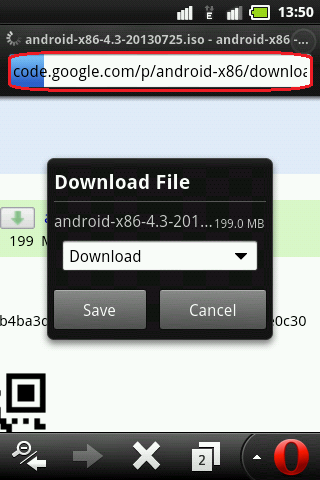
4. Now here is the trick,while opening the new tab, press refresh the first tab or the page that you clicked the download earlier, you can see in the screenshot below.
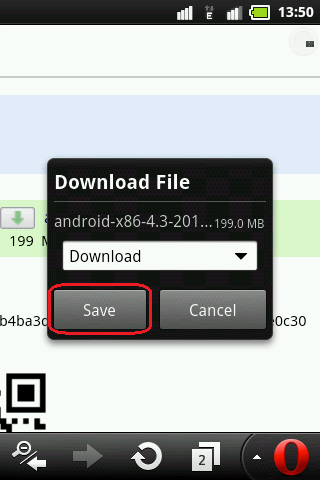
5. The download menu will appear, but dont touch or click anything yet, just wait untill the loading in the second page finish.
operamini-big-file-download-save.png
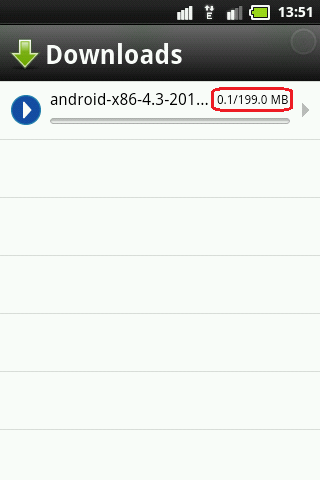
6. After the second page finish or done loading, you can now search if where do you want to save your downloaded file and Download it
operamini-big-file-download-started.png

Enjoy Downloading Big files....

Note : I have personally tried 81MB get start download immediately 1-5 seconds on android with Operamini 7.5.3 MOD try in yours.

Hope itz helpful to you.
Read More
  • Share This:  
  •  Facebook
  •  Twitter
  •  Google+
  •  Stumble
  •  Digg
loading...
Older Posts Home

Popular Posts

  • Airtel New 3G 4G Free Internet Trick With Universal VPN Revision Handler - February 2017
    Airtel New 3G 4G Vpn Trick With Universal Vpn Handler.  I am back here with new airtel free internet vpn trick with universal vpn hand...
  • How To Hack Password Protected .Rar Files
    How To Hack Password Protected .Rar Files   Today we post Method Trick to Unlock or extract password protected .rar or winrar files....
  • Trick To Use Unlimited Data In Tunnel Guru Without Tunnel Guru Premium Account [February 2016]
    Now trending is the Airtel DNS trick. Tunnelguru has the easy interface that provides DNS tunneling . It provides 150mb/ ...
  • Trick To Hack Airtel Digital Tv - Watch Channels For Free
    Steps For Airtel Digital TV Hack Trick to Watch Free Channels :- First of All, Press Menu Button on your Airte...
  • Best Facebook Auto Liker Sites 2017
    Best Facebook Auto Liker Sites List For Get Free Unlimited Facebook Likes. Facebook auto liker tools are used by many facebook users fo...
  • How do I get the owner's details from the vehicle registration number in India (Hindi)
    Ministry of Road Transport and Highways has developed search systems accessible through both SMS and Web for the use of Common Citizen...
  • How to Get Unlimited Friend Request on facebook
    How to Get Unlimited Friend Request on facebook without any blocking issue.This is safe trick to get friend requests Now Facebook...
  • Android Pattern Lock Can Be Cracked In Just 5 Attempt: Here's how
    The popular pattern lock system used to secure millions of Android smartphones can be cracked within just five attempts - and more comp...
  • Uptobox Free Premium Account {Openly Posted} - Valid Till November 2016
    Uptobox.com launch Uptostream.com. You can now stream your files and they are available in HD (360p, 480p, 720p, 1080p) on al...
  • How To Make Unlimited Fake Accounts In Droid VPN For Unlimited Usage Without Premium Account
    Hello Friends, Today Am Sharing This Secret Trick To make Unlimited Droid Vpn Fake Accounts.  Droid Vpn gives only 100mb Bandwidth Limit P...

Categories

  • Android Tricks
  • Blogging Tricks
  • Earn Money Online
  • Facebook Tricks
  • Free
  • Free Internet Data
  • Hacking Tricks
  • How To
  • Information Zone
  • Network Tricks(Airtel)
  • Network Tricks(Other)
  • Online Shopping
  • Opera Tricks
  • Other Tricks
  • PC Tricks
  • Premium Accounts
  • Promo Codes
  • Recharge
  • Reliance Tricks
  • Special Tricks
  • Tech News
  • Tricks in Hindi
  • Troid VPN
  • Tutorials
  • Unlimited
  • Whats App
@PSK4U. Powered by Blogger.

Translate

Protected by Copyscape

Join Us On Facebook

Join Us On Facebook
Like Us On Facebook

Copyright © TECH ADVICE | Powered by Blogger
Design by Pushpendra Singh Koshyari |